Wix Installation
Code
Frameworks
Platforms
Tip: You can use the HTML method to install on any website.
Hyvor Talk uses Wix's Custom Elements feature to embed comments. To use it, connecting a custom domain to Wix is required to install Hyvor
Talk.
Note: if you want to view the embed in the Wix Editor, you will need to add static.parastorage.com or static.wixstatic.com to allowed domains in Console → Settings → Website, if an error is
shown.
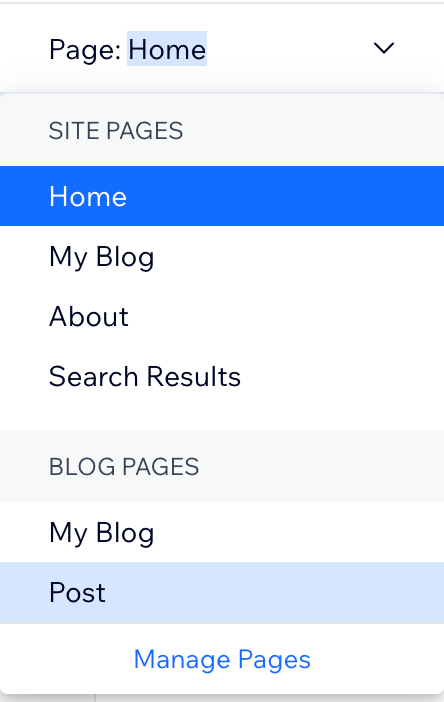
- Open the site editor and choose the page type. For example, if you want to install Hyvor Talk
on a blog page, choose Blog Pages → Post.
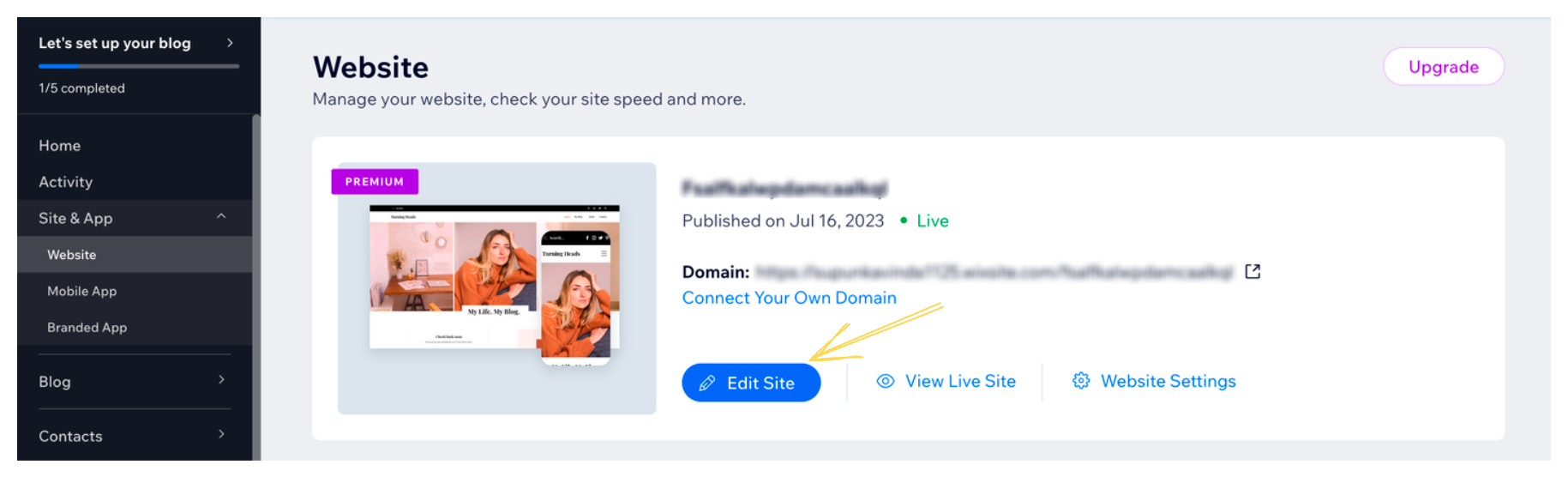
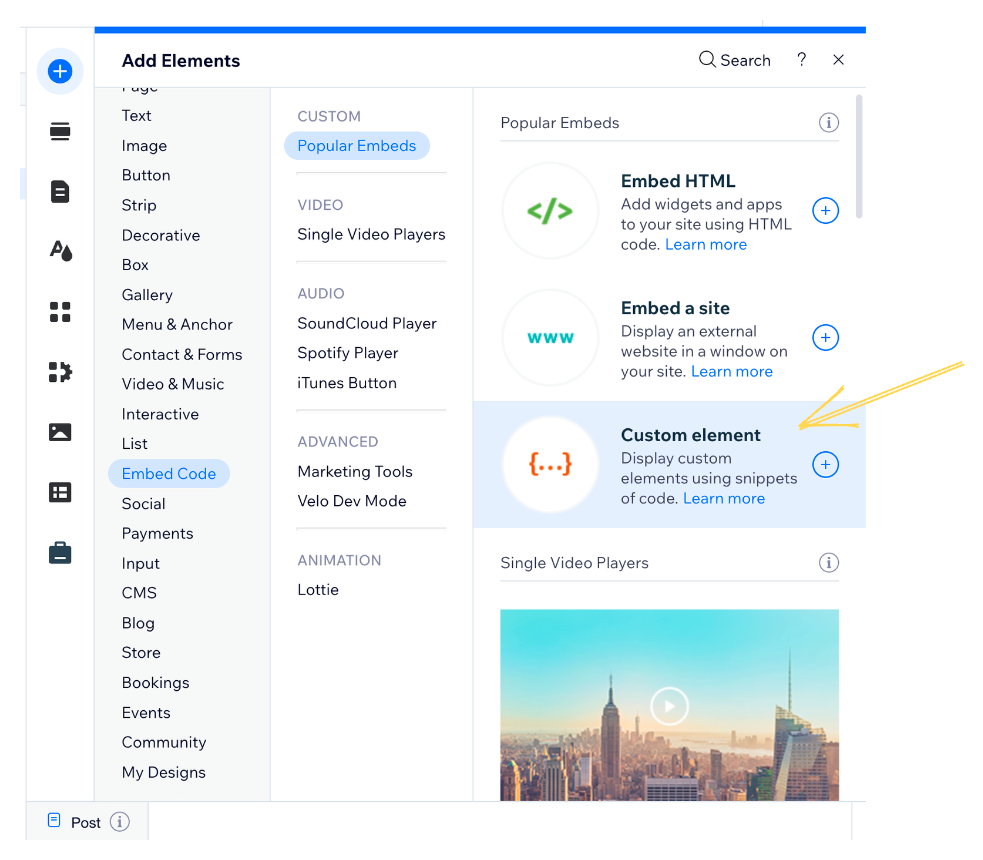
- Add a custom Element to the page. Position it where you want to add comments.
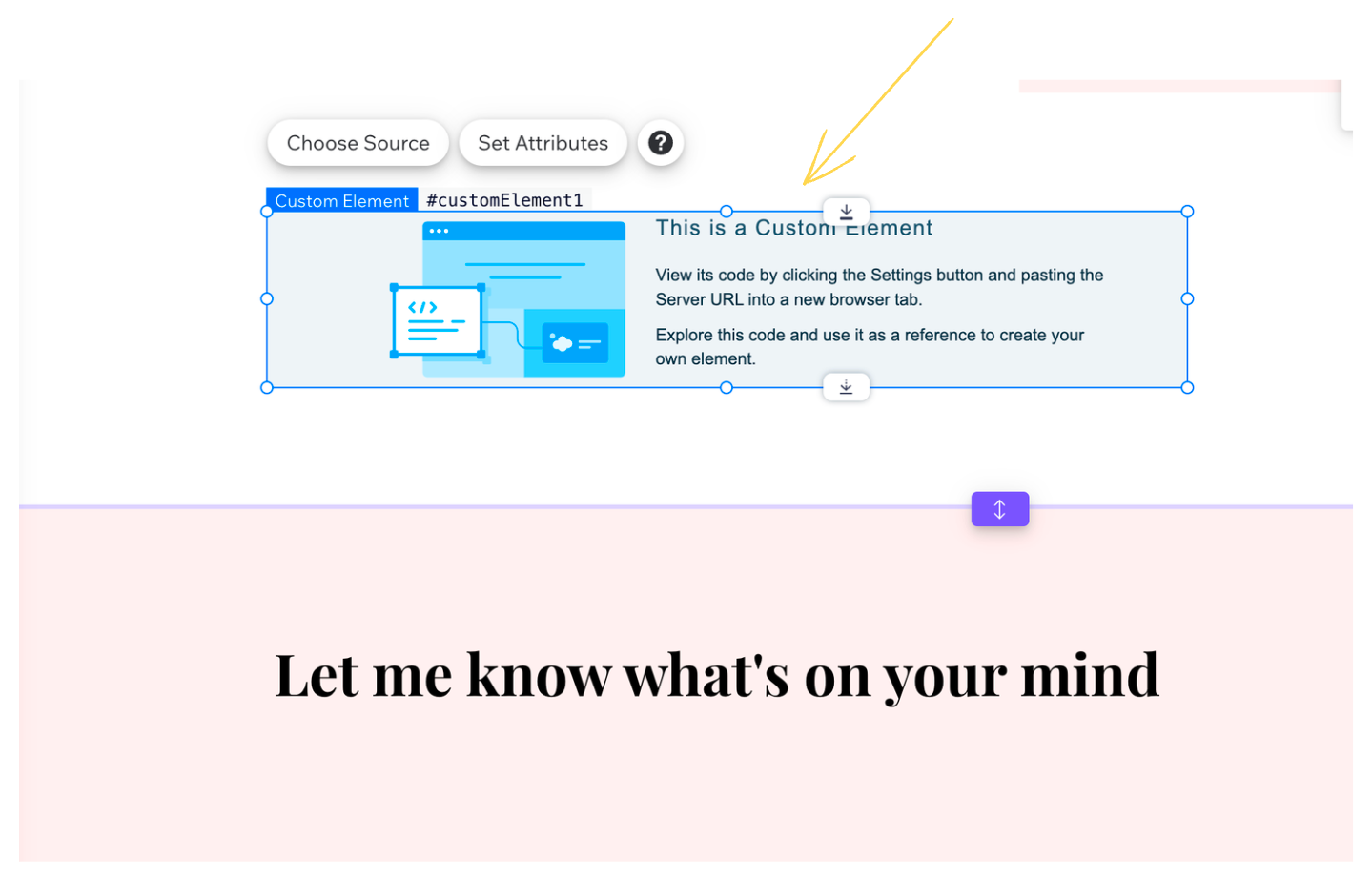
You may keep the height of the element to a minimum. It will be automatically adjusted when the comments are loaded.
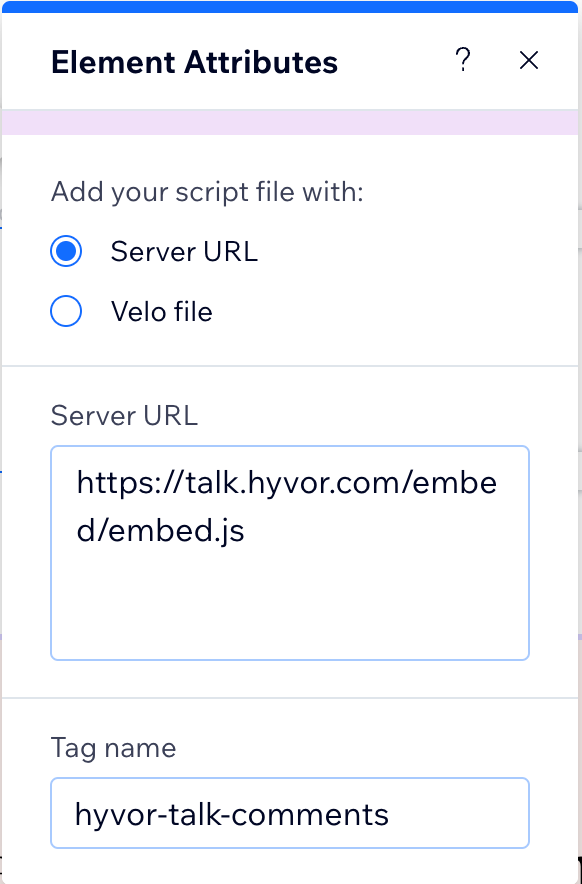
- Click Choose Source and set the following values:
- Server URL:
https://talk.hyvor.com/embed/embed.js - Tag Name:
hyvor-talk-comments
- Server URL:
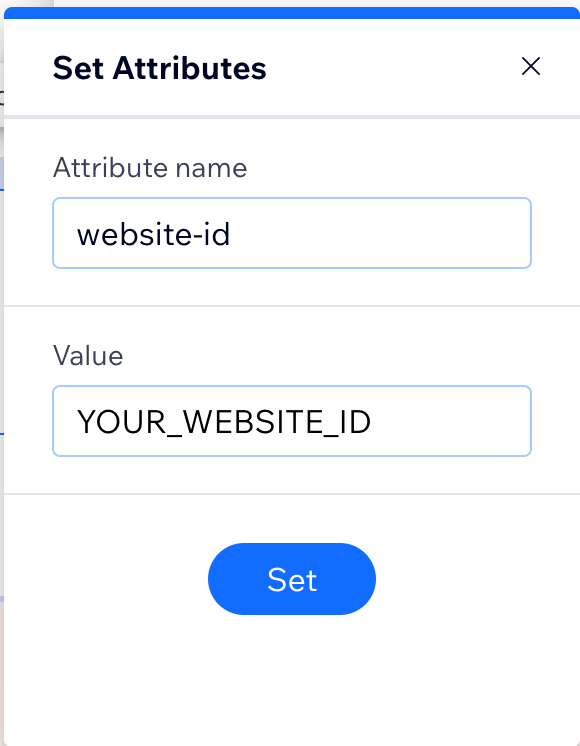
- Click Set Attributes and one attribute with the following values:
- Attribute Name:
website-id - Value:
YOUR_WEBSITE_ID
- Attribute Name: